LOGIN
Remote Support, Web Conference
Online Meetings, IT Support, Broadcasting

Premium Meetings and Support

Remote support meets the needs of millions of businesses worldwide since it helps companies achieve their business and financial goals faster and more efficiently. Our remote computer access application can boost productivity and improve profitability by cutting down costs in various arenas of your business. The application is completely secure and reliable.

 As a Premium user you can customize your account in many ways.
 Automatically email this password to yourself.
 Add Logo, change title, get Conference Call Number.
 The remote users getting support will NOT have to give you the 14 digit passwords.
 Default password length is 4 digits.This password length can be configured from 2 digits to 10 digits.


Screen Sharing for Online Presentations, and restrictive firewalls where viewers can simply watch using standard browser.
Anyone allowed can view the broadcast without the need of any plug in or download, purely browser based.
Broadcast your screen to provide Powerpoint presentations, meetings and demonstrations online.
Options and Help  |  Admin Setup Guide

For Premium Meetings make sure all the users(Host and Viewers) go to your private website e.g. (mydomain274.showmypc.com)

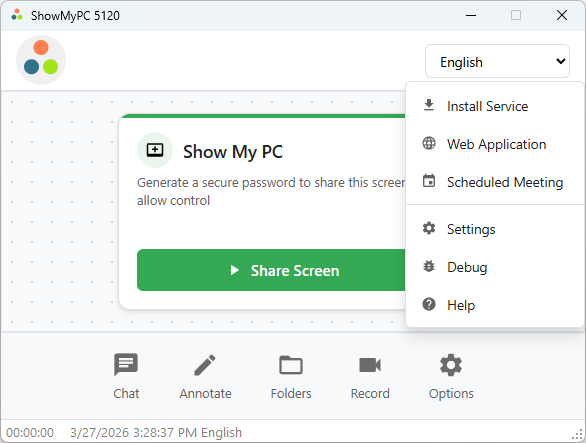
1. To share your desktop, click on link 'Show My PC' and click Show My PC Now.

2. Give shorter password (or auto email) to remote viewers.


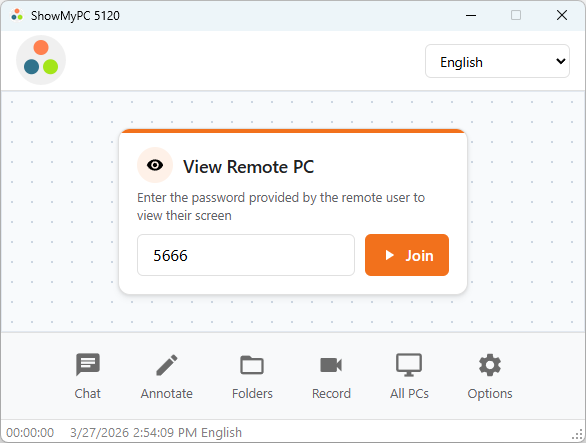
3. To View Remote PC, launch 'View Remote PC' or 'Full application' and click View Remote PC
4. Enter the shorter password to connect.


See more features.

How to start Free Instant Meeting?
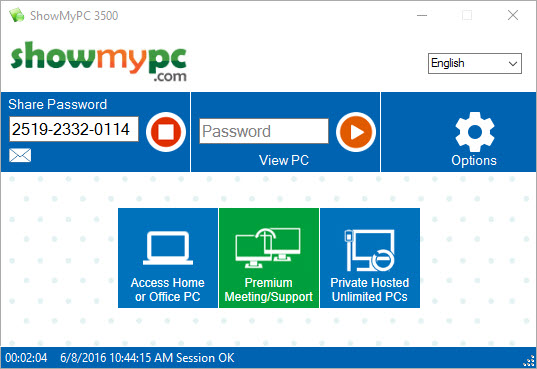
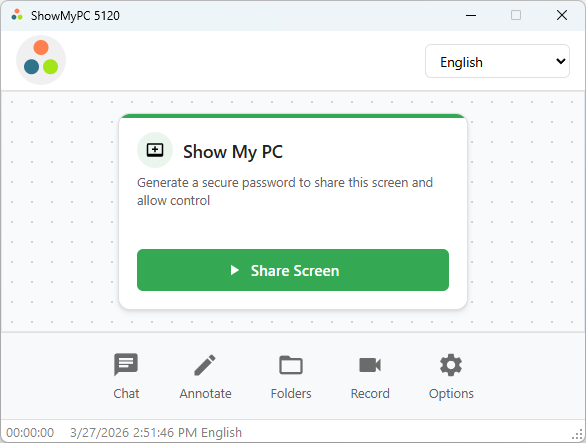
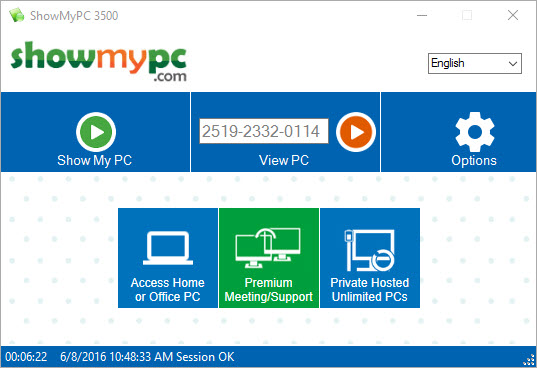
1. To share your desktop instantly, Launch ShowMyPC3152.exe
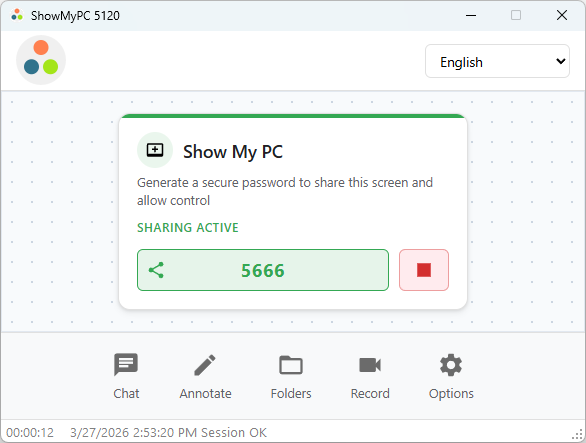
2. Click on "Show My PC" button to generate password and make your computer accessible remotely.

3. Give the password to remote user. He will choose "View remote PC" option.

How to Schedule meetings using Microsoft Outlook?

1. Launch ShowMyPC and click "Schedule using Microsoft Outlook" under Options.

How to Start a Premium Scheduled meeting (with your chosen password)?

1. Launch ShowMyPC and Click on "Show My PC (Scheduled)"
Enter you scheduled numeric password and click Ok.

You are done, you just started a scheduled meeting.

Premium Version: How to Attend a Scheduled Meeting?

1. Launch PREMIUM Version: Get meeting password from the host. Click View Remote PC and Enter the scheduled password.


Free Version: How to Attend a Scheduled Meeting?

1. Launch Free ShowMyPC Version and choose "View PC (Scheduled)".
2. FREE Version: Get the Host's email and meeting password from the host. Click ok to join the meeting.

Premium Web Conferencing

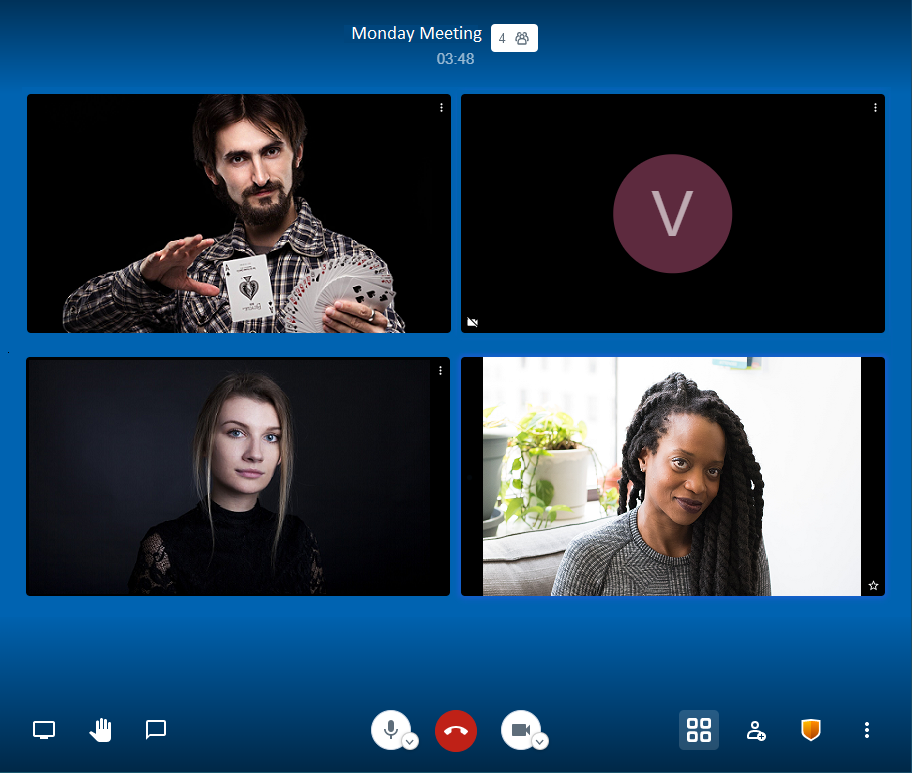
Premium users can do Screen Sharing, Chat, Whiteboard, Web Cam and Phone Conference all in a single meeting.
 As a Premium user you start a Web Conferencing with multiple users.
 Users can join you from Windows, Mac, or Linux.
 Users can call in using regular telephone line (US, Canada, Local/Long Distance).
 Web Conferencing is available with both Meetings and Broadcasting packages.

How to start Web Conferencing?

1. Decide a date and time to start. Decide a unique room name. e.g. 'Daily Morning Meeting 3496'
2. Send the above info along with your ShowMyPC web site link and ask the remote users to Click on 'Room Chat Whiteboard'.
3. Host can first join the meeting and post the conference call phone number in chat.
4. On your web site look for 'Conference Call Number' to use ShowMyPC provided conference number.
5. Participating users will enter the room name and their name to join.
6. Any user who shares screen can post the password for viewers in this secured chat.


See more features.

Screen Sharing from a Mac OS X, Linux or Windows

ShowMyPC provides a Java based cross platform version which works on a Mac, Linux or Windows.

1. To share your desktop from a Mac, Click Mac OSX Desktop Sharing | Linux Viewer
2. Click on "Show My Mac Now" button to generate password and make your computer accessible remotely.
3. Give the password to remote users.
Premium clients may follow the same steps on their private website.

View from Mac, Linux or PC

1. To View remote desktop from a Mac or Linux, Click Mac OSX Desktop Sharing | Linux Viewer
2. Click on "View Remote PC" and enter password given by user sharing the screen.
Windows users may optionally Launch ShowMyPC3152.exe and choose "View Remote PC".


Cross Platform Mode

ShowMyPC provides a way to screen share on any platform that supports standard Java (Mac, Linux, or Windows)
Screen sharing may currently be a slower in the Cross Platform mode on some Operating Systems.
    

View Remote Screen from Android Device

Search 'ShowMyPC' in Android market, install once and launch.

 Premium Meeting
1) On PC or Mac, Remote user will share screen and give you the password to connect from Phone.
2) Click 'Change User' to login once as Premium user and enter your ShowMyPC subdomain e.g. 'mydomain274'.
3) On Android Device Click 'View Meeting PC' and enter password to connect.

 Access Home or Office PC
1) On PC, follow instructions in your signup email, to setup service on your remote PC.
2) Click 'Change User' to login once as Premium user and enter your ShowMyPC subdomain e.g. 'mydomain274'.
3) Click Access Home or Office PC > Select your PC from list > Enter password.

 Free Meeting
1) On PC or Mac, Remote user will share screen and give you the password to connect from Phone.
2) On Android Device, click 'View Meeting PC' and enter password to connect.
3) Free version has limitations with session timings and performance during peak loads.

Verified On

 Version:Android Gingerbread, ICS, Honeycomb. 4.2.2, 4.1, 4.0, 3.2, 2.3, 2.2, 2.1.
 Devices: All Google Nexus, Samsung Tablets, Samsung S 2/3, should work on most other modern Android tablets and devices.

View Remote Screen from iPhone, iPad, iPod Touch

Search 'ShowMyPC' in App Store, download the app and launch.

 Premium Meeting
1) On PC or Mac, Remote user will share screen and give you the password to connect.
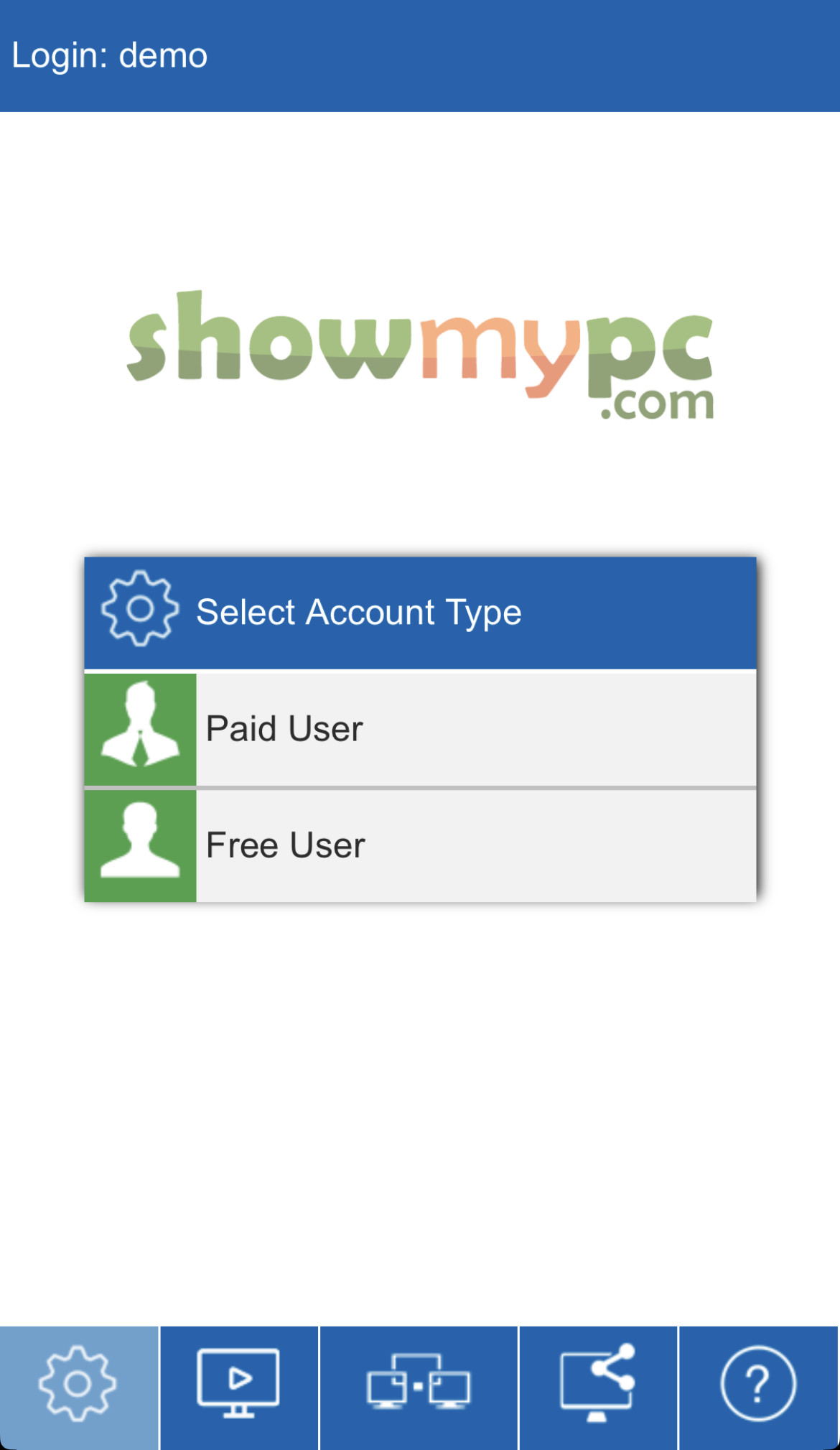
2) On your iOS device, click 'Paid User' to login once as Premium user.
3) Enter your ShowMyPC subdomain e.g. 'mydomain274'.
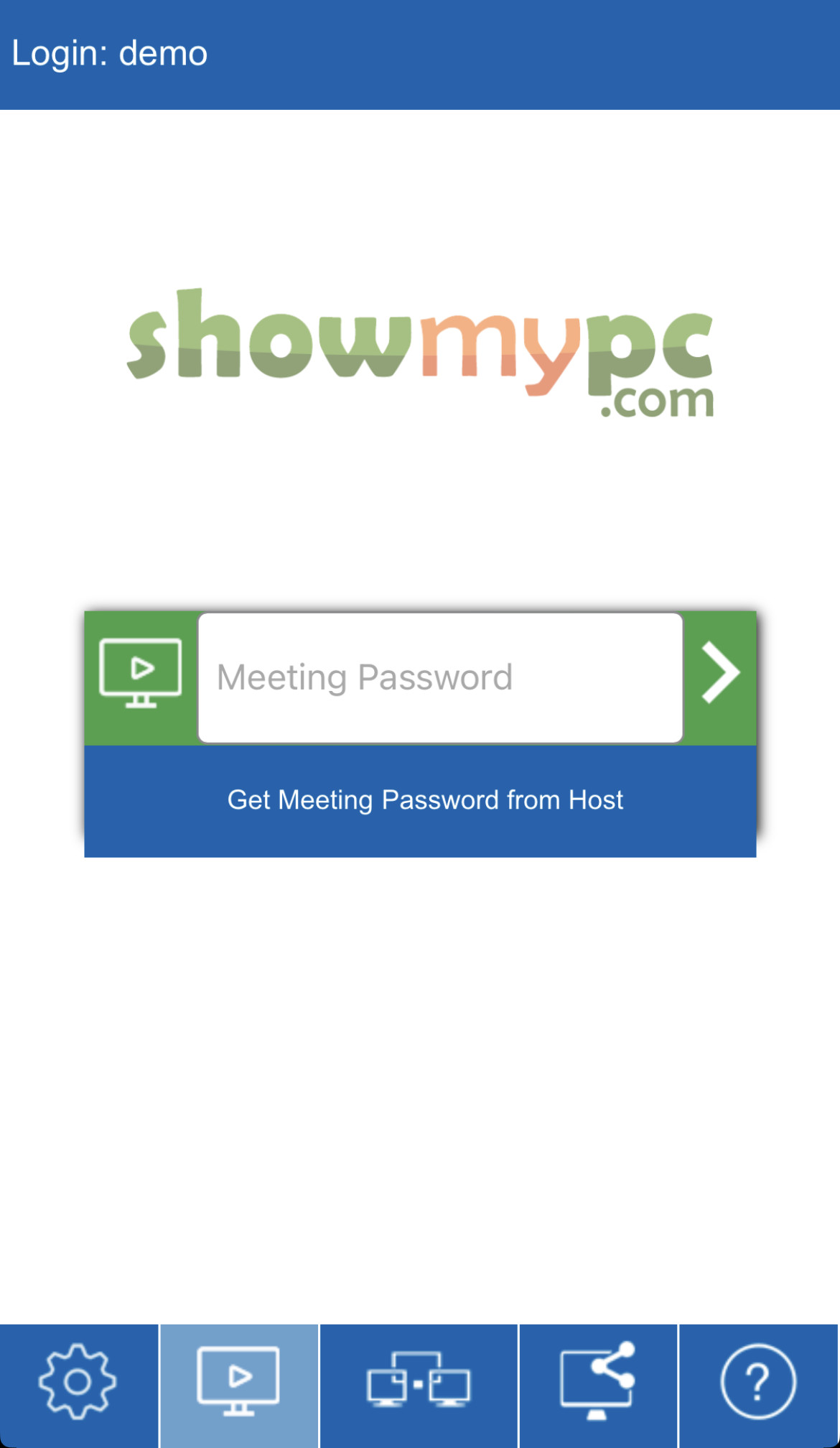
4) Go to the Meeting tab and enter password to connect.

 Access Home or Office PC
1) On PC, follow instructions in your signup email, to setup service on your remote PC.
2) On your iOS device, click 'Paid User' to login once as Premium user.
3) Enter your ShowMyPC subdomain e.g. 'mydomain274'.
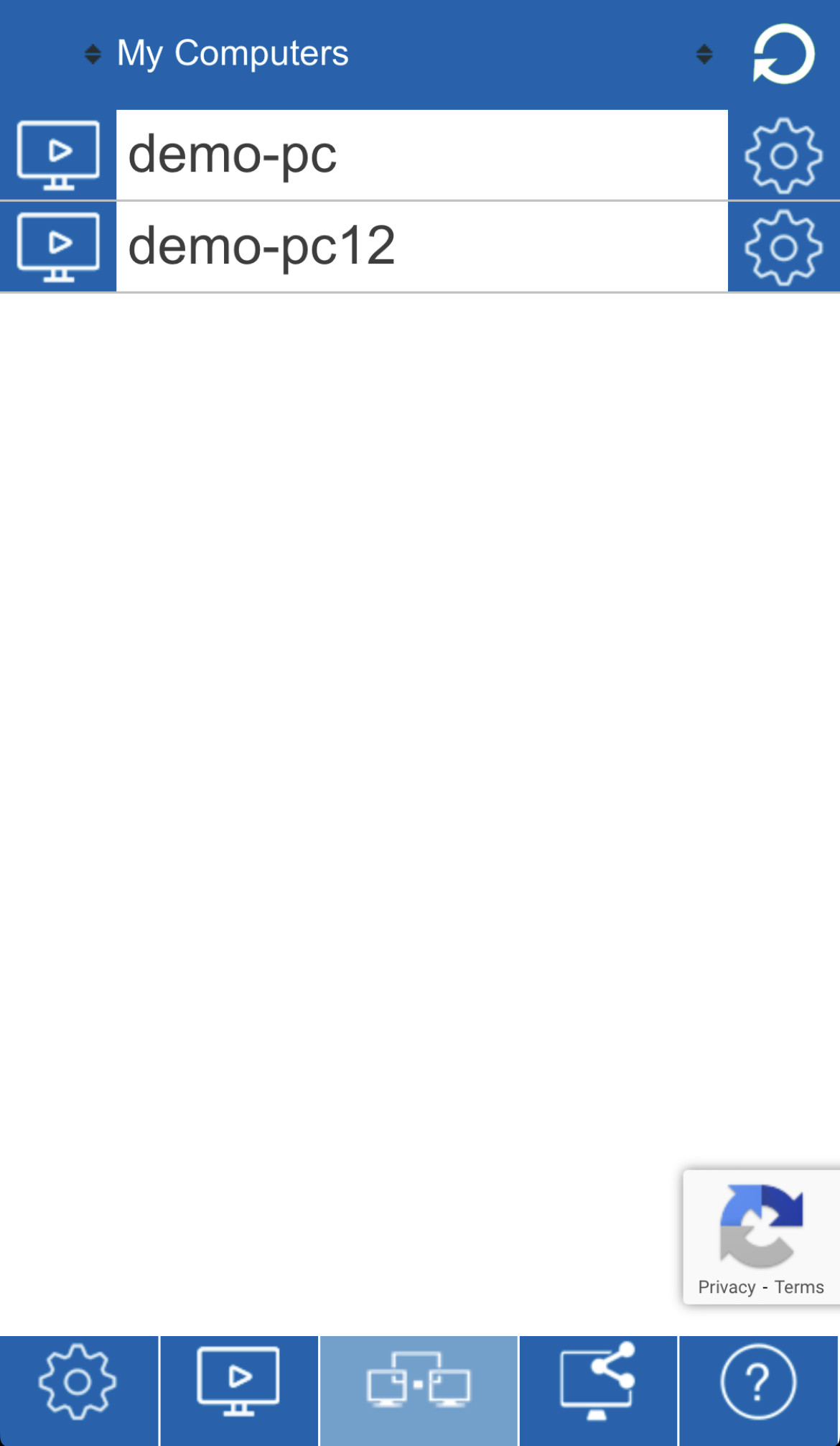
4) Go to the Unattended PCs tab to see your list of remote computers.
5) Select the PC you wish to connect to, enter password, click on "View Remote Screen" and connect.

 Free Meeting
1) On PC or Mac, Remote user will share screen and give you the password to connect.
2) On your iOS device, enter password and run to connect.
3) Free version has limitations with session timings and performance during peak loads.

 Send Invitation to Share Screen
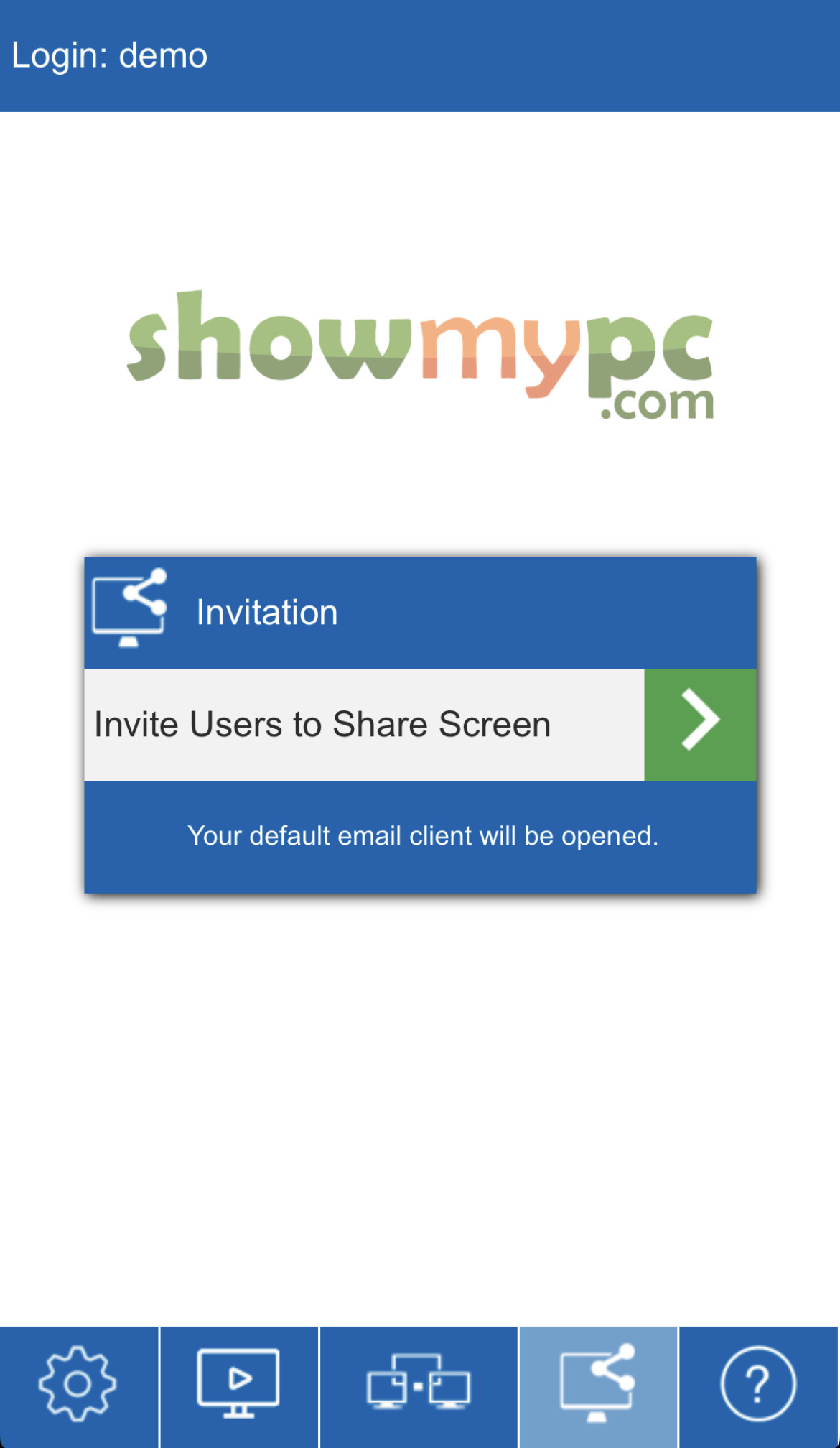
1) All users can send meeting invitations using email contacts from your mobile device.
2) For Premium users, the meeting password will be generated, and all the user needs to do is click on the email link to start sharing their screen.
3) You can then navigate to the Meeting tab in your app, and start viewing remote screen right away.
Verified On

 The app is compatible with iPhone, iPod Touch, and iPad.
 It is optimized for iPhone 5, and requires iOS 4.3 or later.