Home Premium Access PC
LOGIN
menu
Remote Support, Web Conference
Remote Access, Meetings

Premium Meetings and Support

ShowMyPC offers easy and reliable remote support, screen sharing, and Enterprise workplace collaboration tools. A highly customizable service that can easily integrate with your applications and processes.

check_circle
Browser based viewer with no download needed.
check_circle
Manage unattended remote PCs securely with two-factor authentication (2FA).
check_circle
White-label branding: Custom domains, logos, and applications.
check_circle
The default password length is 4 digits (configurable from 2 digits to 10 digits).
You can predefine or automatically email this password to yourself.

How to conduct a screen sharing session?

For Premium Meetings, ensure all users (Host and Viewers) navigate to your private website (e.g., mydomain274.showmypc.com).
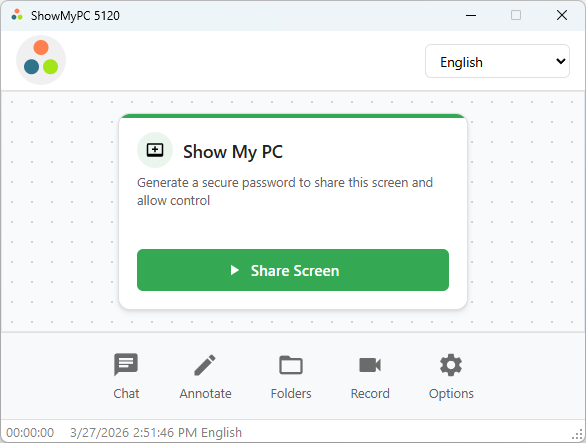
1. Share Your Desktop
To share your desktop, click on the link 'Show My PC', download and run the app. Cick Share Screen.
Share Desktop Step 1
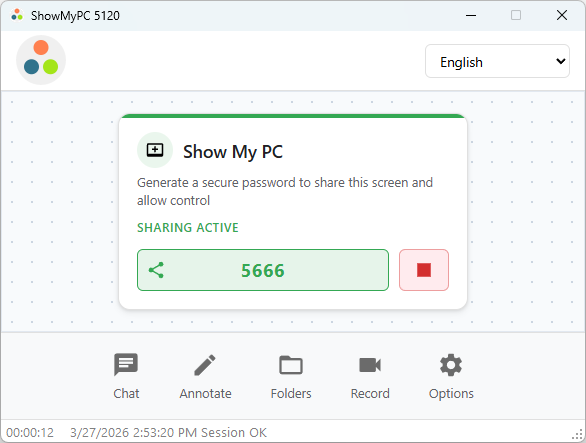
2. Provide Password
Give password to remote viewers.
Share Desktop Step 2
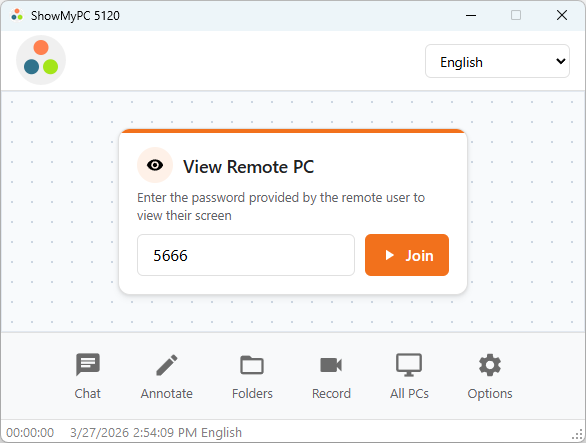
3. View Remote PC
To View Remote PC, download and run 'View Remote PC' or 'Full application'. Enter the password, and click Join to connect.
View Remote PC
Unlock All Premium Features
Get advanced collaboration tools, custom branding, and more.
See Pricing & Features arrow_forward

How to start Free Instant Meeting?

1. Launch Application
To share your desktop instantly, Launch ShowMyPC3825.exe
2. Generate Password
Click on "Show My PC" button to generate password and make your computer accessible remotely.
Generate Password
3. Connect as Remote User
Give the password to remote user. They will choose "View PC" option.
View PC Option

Premium Version: How to Schedule meetings?
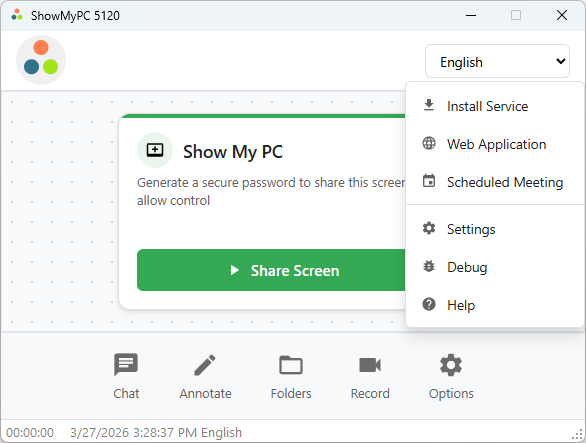
1. Access Scheduled Meetings
Launch ShowMyPC. Go to Options -> Scheduled Meeting.
Scheduled Meetings Option
2. Invite Users & Start Meeting
You can email users to invite them to a meeting.
To start a scheduled meeting, enter your numeric password and click "Start Meeting".
Schedule Interface

Video Conferencing: No Download | Browser Based
video_call
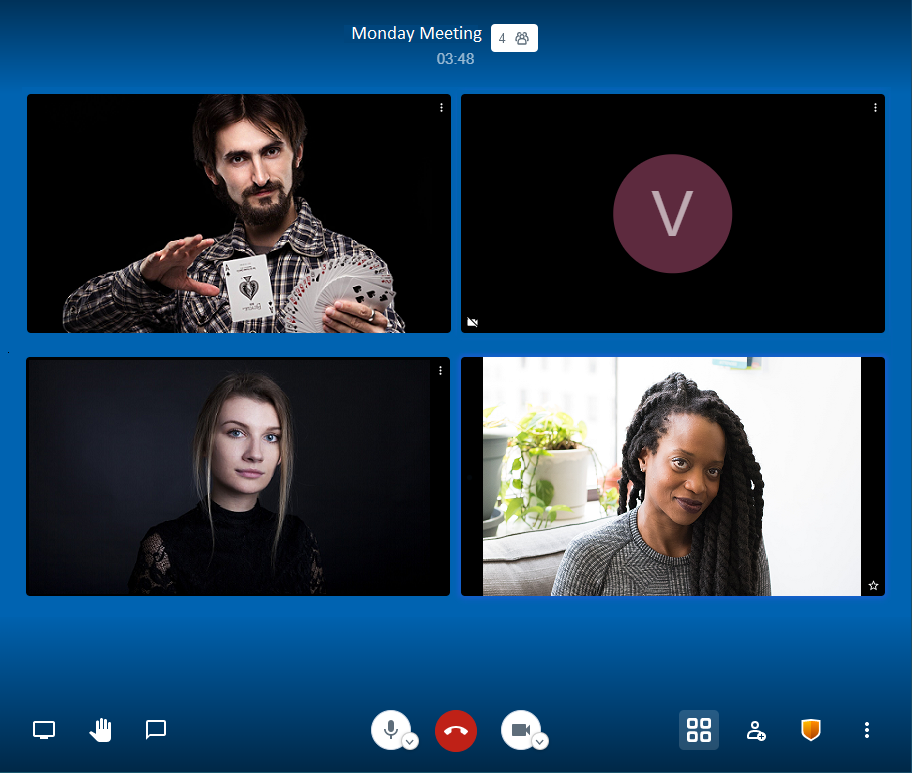
Start a video conference from your account page. Choose a meeting name, eg. Meeting23.
share
Share your account page and meeting name with your participants.
Video Conference Interface
screen_share
Share your screen using computer audio, chat with participants, raise hand to allow smooth meeting flow.
manage_accounts
Moderator has ability to mute, kick out, and grant moderator rights to participants.
tune
Advanced features: Manage video quality, Share a YouTube Video, Speaker Stats, Password Protection (recommended).
stars
Video Conferencing is included with all our meeting packages.
Ready for Video Conferencing?
Web conferencing is included with all our meeting packages.
See Pricing & Features arrow_forward

Screen Sharing from Your Browser

Using the web version, share a computer screen securely with view-only access.

Web version for Mac Windows Linux Web Share
Screen Sharing Using the Mac App

This option should be used when you need to provide full control, and requires a download.

Screen Sharing from Mac (with full control) Mac App

Screen Sharing from Linux

This option should be used when you need to share your Linux screen with full control.

Screen Sharing from Linux (with full control)

View from Mac or Linux

1. To View remote desktop from a Mac or Linux, use the HTML Viewer on your home page.
2. Enter the password and click arrow to view remote screen.

View from Mac Linux

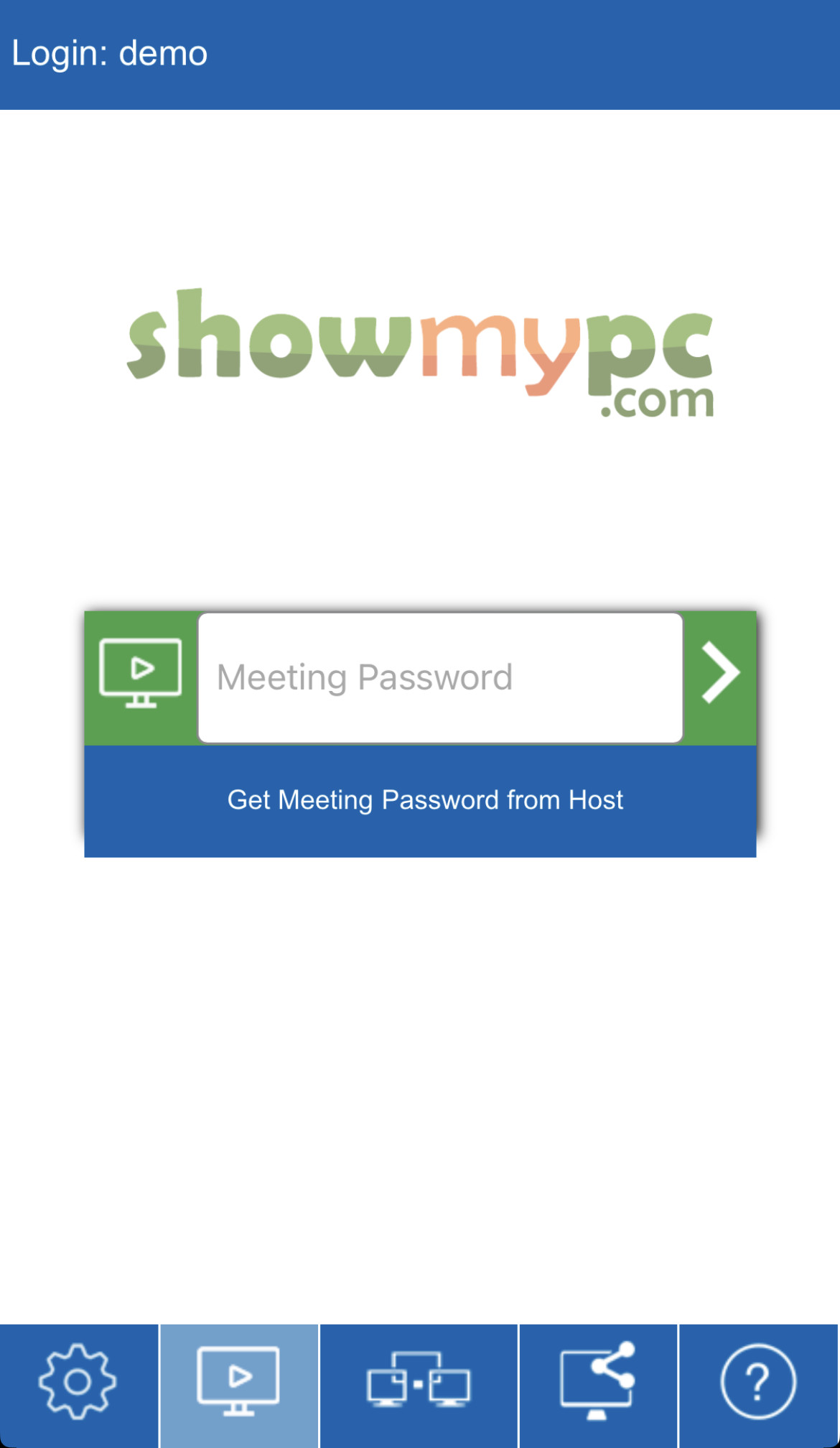
View Remote Screen from Mobile Device

Search 'ShowMyPC' in App Store or Google Play, download the app and launch.

stars
Premium Meeting
1) On PC or Mac, remote user will share screen and give you the password to connect.
2) On your device, click 'Paid User' to login once as Premium user.
3) Enter your ShowMyPC subdomain e.g. 'mydomain274'.
4) Go to the Meeting tab and enter password to connect.
important_devices
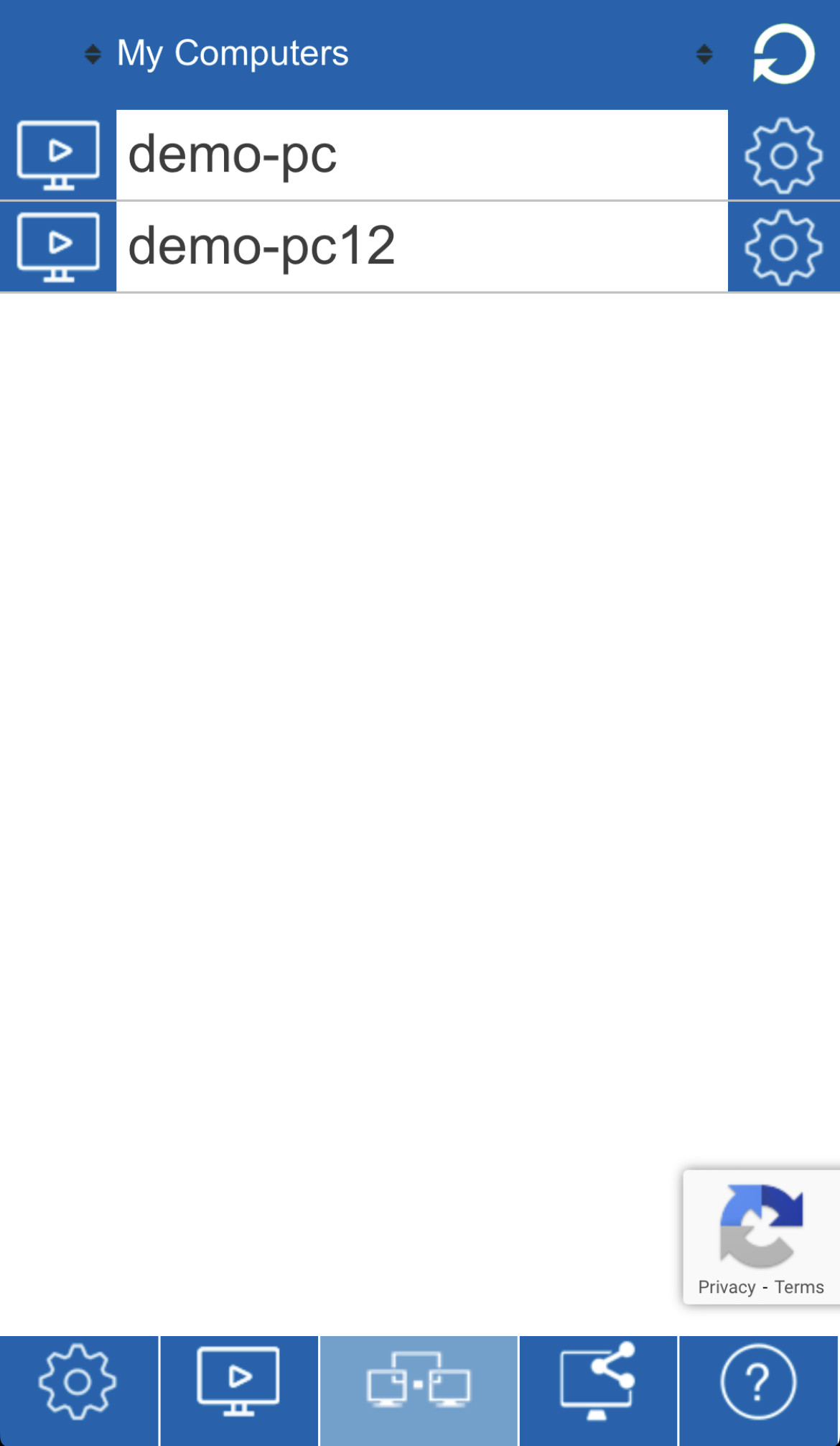
Access Home or Office PC
1) On PC, follow instructions in your signup email, to setup service on your remote PC.
2) On your device, click 'Paid User' to login once as Premium user.
3) Enter your ShowMyPC account subdomain e.g. 'mydomain274'.
4) Go to the Unattended PCs tab to see your list of remote computers.
5) Select the PC you wish to connect to, enter password, click on "View Remote Screen" and connect.
group
Free Meeting
1) On PC or Mac, remote user will share screen and give you the password to connect.
2) On your device, enter password and run to connect.
3) Free version may have limitations with session timings and performance during peak loads.
outgoing_mail
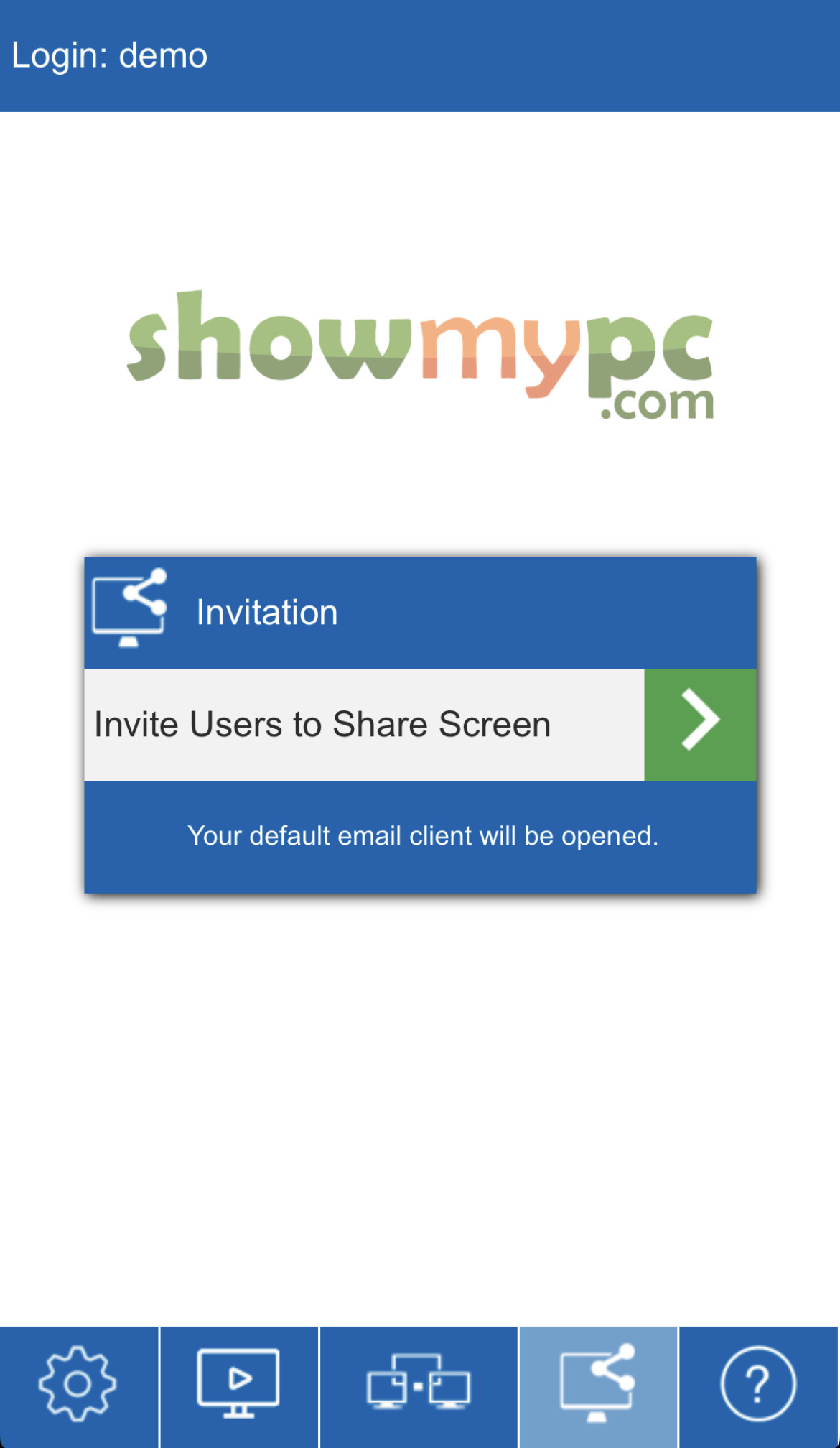
Send Invitation to Share Screen
1) All users can send meeting invitations using email contacts from your mobile device.
2) For Premium users, the meeting password will be generated, and invited users will click on the email link to start sharing their screen.
3) You can then navigate to the Meeting tab in your app, and start viewing remote screen right away.
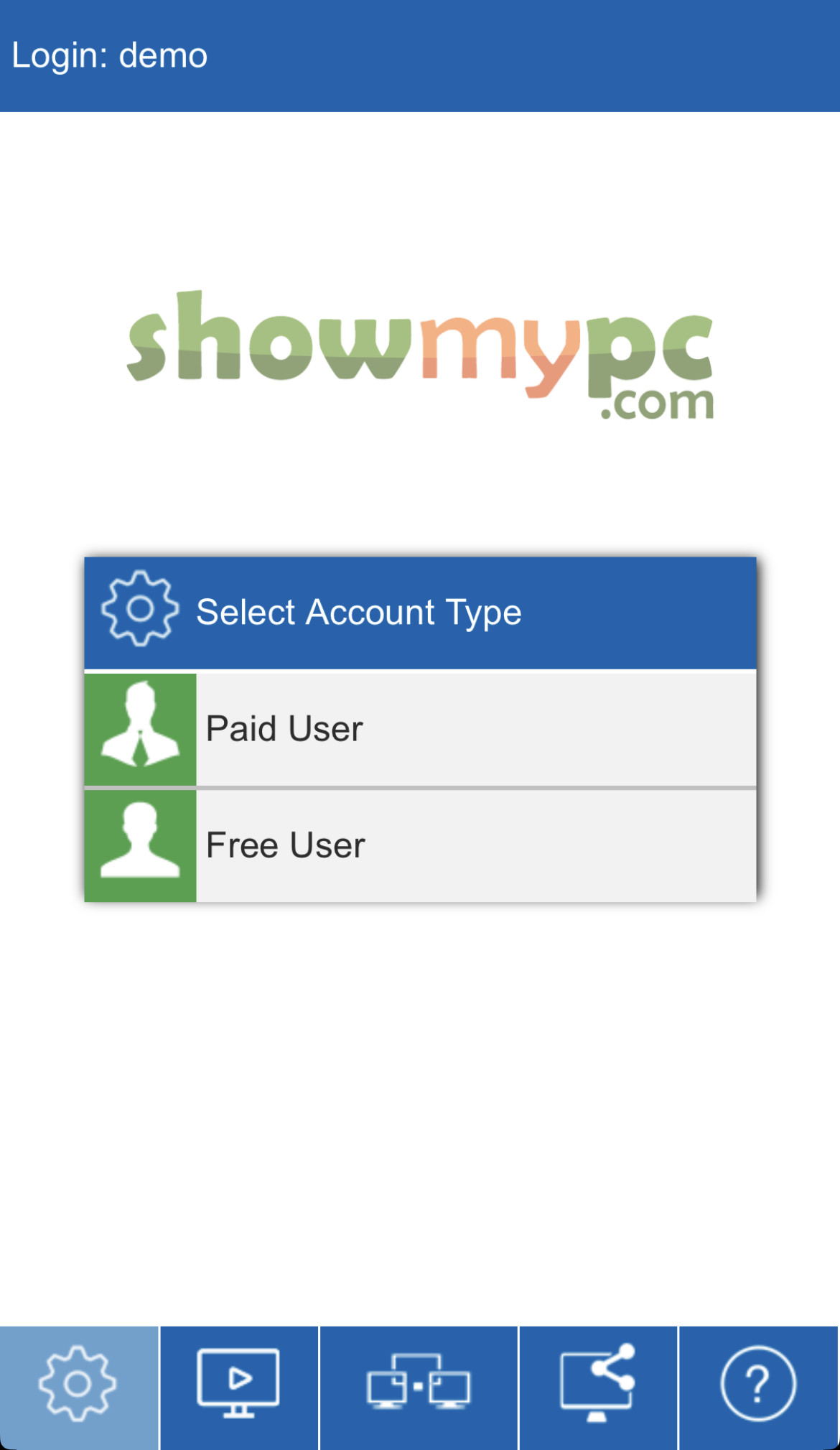
iOS Account iOS View iOS PC List iOS Email

Verified On

verified
App is compatible with Android, iPhone, and iPad.
verified
Android 11 or iOS 15.0 or later.
Help Videos LinkedIn Android App
?
Contact
3031 Tisch Way,
110 Plaza West,
San Jose, California 95128
+1.888.930.1116


© 2026 ShowMyPC. All rights reserved.
close